Bïrch automation pauses underperformers, scales winners, and controls budgets — now with AI recommendations that surface new opportunities. You stay in control of every decision
Tool directory
5 tools · Read-only
Rules & logs
The core of the read surface. List a workspace's automation rules (with optional folder filtering) and their folder structure, pull one rule's full logic in prose (conditions, schedule, filters, targeted entities), then list its execution history and drill into one run to see exactly which entities matched, what fired, and any errors.
list_automation_rules
list_rule_folders
get_rule_details
list_rule_logs
get_rule_log
2 tools · Read-only
Workspace & accounts
List the workspaces the connected user can access, then the ad accounts under a workspace for a given platform.
list_workspaces
list_ad_accounts
2 tools · Read-only
Metrics catalog
Resolve a metric by natural-language description to its canonical id, or list a workspace's custom metric formulas (with the underlying expression, not just the name).
search_metric
list_custom_metrics
3 tools · Read-only
Stage (creative pipeline)
Check Stage task status (upload vs. create, progress, failure reason), see which files a task uploaded and their platform media IDs, and list the ads a create task actually produced.
list_stage_tasks
list_stage_uploads
list_stage_created_ads
1 tool · Read-only
Help
Keyword/semantic search over the Birch help center, so an AI client can answer product questions from real docs instead of guessing.
search_help
Two ways to work with your automation
Birch AI
Explore →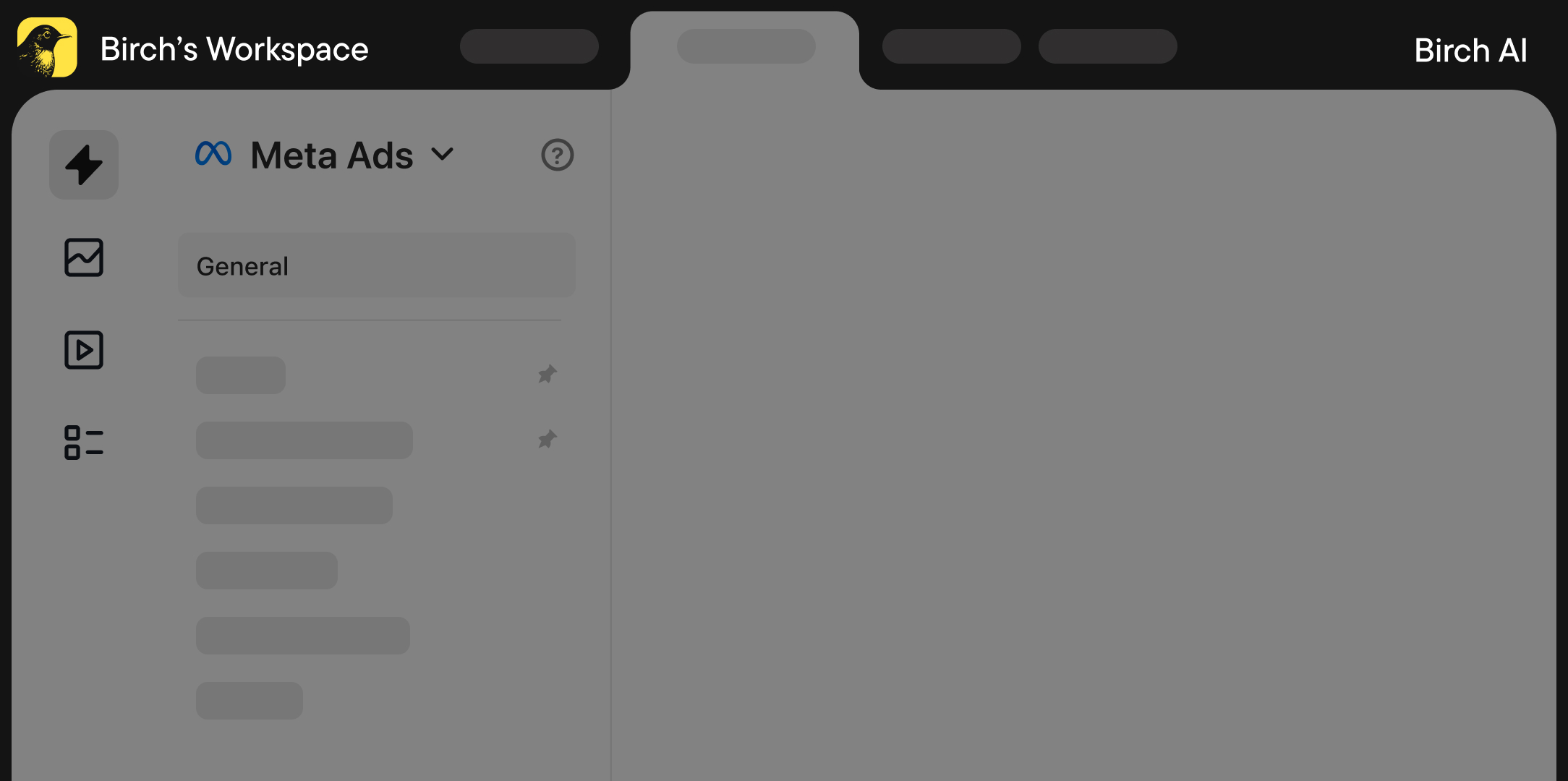
New chat
Create a rule to Pause ad sets: 3-day spend over $100 and cost per purchase above $40
Got it. Here’s a rule based on your conditions:
Pause ad sets — high spend, low efficiency
Conditions ›
Review and set live rule
Ask anything
Assistant inside the Birch product. It reads your rules and account data and helps you work faster without leaving Birch.
Birch MCP
Explore →


Brings your real data to Claude and other AI clients. Use it when you’re already working in Claude — alongside your other connected tools. You don’t have to switch to Birch to understand what your automation did.
FAQ
What is MCP?
MCP stands for Model Context Protocol. It's an open standard that lets AI tools like Claude connect to external systems and work with their data. Birch MCP uses it to give Claude read access to your automation rules, execution logs, and account structure.
How is this different from Meta MCP?
They read different things. Meta MCP reads campaign data and reporting. Birch MCP reads automation rules — the logic that governs how campaigns are managed. You can use both together in the same Claude conversation.
Do I need technical skills to set it up?
No. You add Birch MCP in your AI client's connector settings, sign in with your Birch account, and you're connected. No API keys, no code.
Can Birch MCP change my rules or my account?
No. It's read-only. Your AI tool can see your automation setup and report on what it finds, but it cannot create, edit, or delete anything. When you want to make a change, you make it in Birch.
What data does Claude see when I connect?
Your workspaces, ad accounts, rule configurations (conditions, thresholds, schedules, actions), execution logs, and folder structure. It does not see your ad creative, billing information, or personal data beyond what's visible in your Birch workspace.
I already use Birch AI. Why would I also use the MCP?
Birch AI works inside the Birch product. Birch MCP works inside Claude and other AI clients. If you already use Claude alongside other tools for your daily workflow, the MCP keeps your automation context in the same place. They're complementary.
Your rules, logs, and accounts — known by your AI tool
Pressure-test your automation, diagnose what happened overnight, and find the gaps — all from one conversation.
Multiple actions per rule
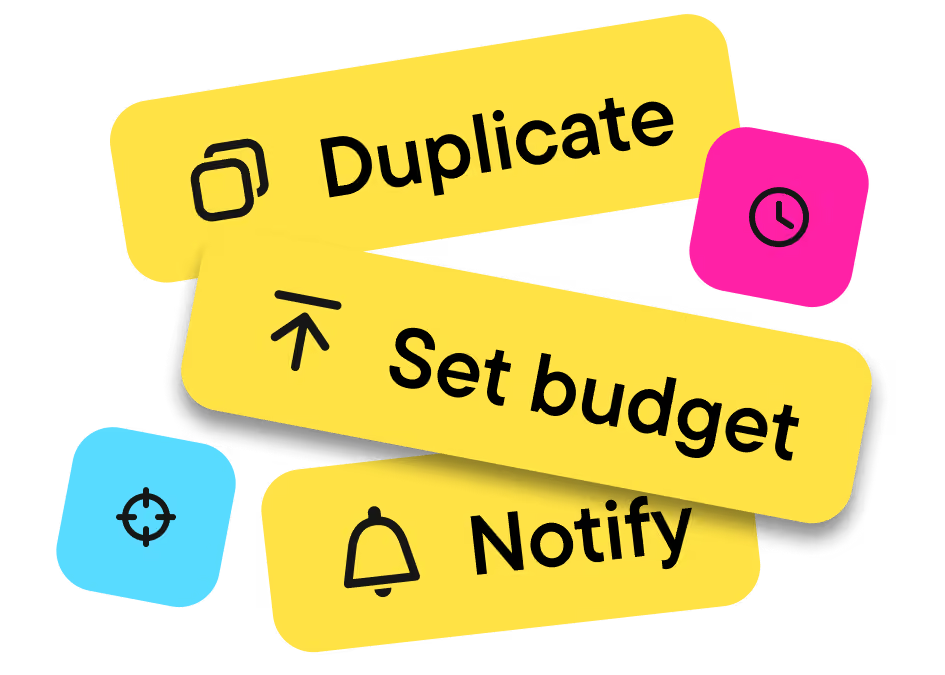
Choose from more than 20 actions and combine multiple actions in a single automation. Pause an ad, send a Slack notification, and adjust the budget, all from one rule triggered by one condition set.
Nested conditions
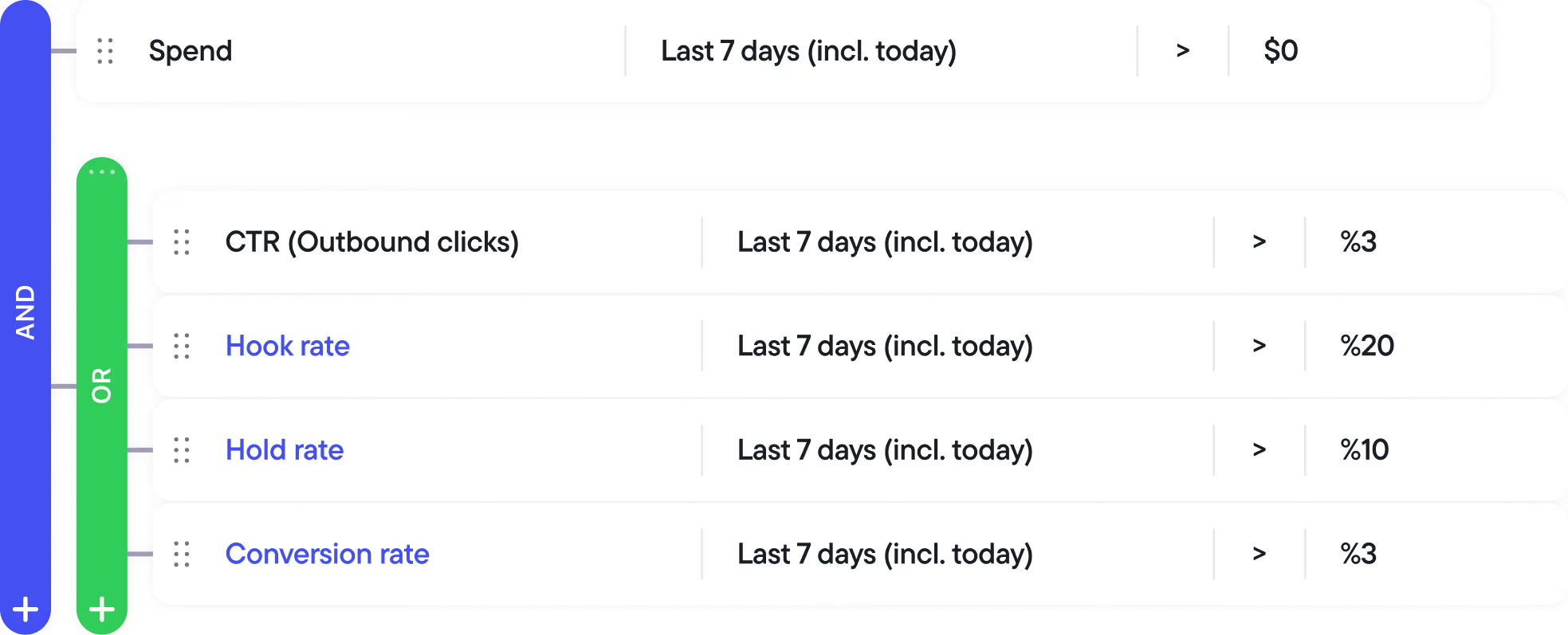
Build sophisticated logic using AND/OR operators to group conditions. Target exactly the scenarios you care about, without creating a dozen separate rules to cover the same ground.
Ranking conditions

Create conditions based on an item's relative performance rather than absolute numbers. Protect your top performers or act on your weakest, automatically.
Multiple actions per rule
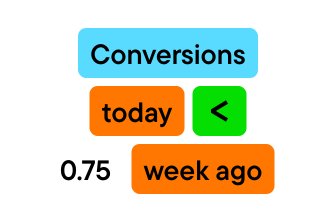
Compare any metric against another metric, not just against a static number. Measure this week's CPA against last week's, or compare an ad set's ROAS to the campaign average, across the same or different timeframes.
Custom timeframes

Define the exact performance windows you care about, beyond the presets native ad platforms offer.
Custom metrics
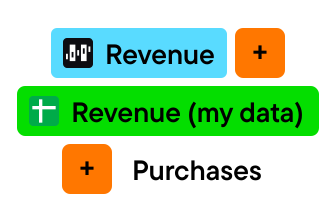
Build your own metrics as calculated formulas or as static variables, and use them as thresholds in your automation rules.
Notifications and automation logs
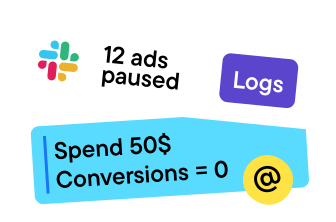
Get alerts via email or Slack when automations fire. Every action is logged with full transparency, showing exactly why each item was or wasn't affected.
External data triggers

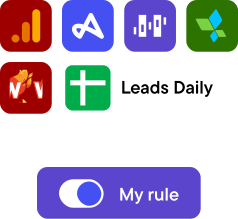
Connect external data sources — Google Sheets, Google Analytics, and attribution tools like Hyros, AppsFlyer, Adjust, and Wicked Reports — and use their data as a live input to your automation rules, enabling strategies that go beyond what in-platform data alone allows.