Somewhere in the last months you, or someone on your team, connected an AI agent to a live ad account. It answered a question about last week’s spend in a few seconds, and the next thought was the obvious one: what else can it touch?
In this guide, we’ll go over what you need to know before handing over the keys: what the agent can do, what it can’t, how to connect, and where the first week tends to go wrong.
In this guide
- What Meta ads MCP is and how it differs from the Marketing API
- What you can do
- What you can’t do
- How to connect
- Managing the agent
- Where the first week goes wrong
- What to ask, what to check, what to lock
What Meta ads MCP is, and how it is different from the Marketing API
Meta ads MCP is Meta’s own connector for AI tools: Meta runs the server, and an AI tool that supports it can read your ad account and make changes in it on your behalf, within the permissions you grant.
The difference from the Marketing API is who does the work. The API is for developers: someone writes code against it, keeps it running, looks after access tokens, and goes through Meta’s app review before it can read a client’s account. The MCP server is for the AI tool: Meta has done that wiring once, and the agent asks the server which tools it may use on your account and calls them. For you there is nothing to build, and the trade is flexibility: the agent can only do what one of Meta’s tools does.
Two things are worth keeping apart. Meta’s MCP documentation index lists two other servers beside this one, WhatsApp Business Tools MCP and Meta Social Technologies MCP, and Meta’s ads documentation also has an ads CLI, the other “ads AI connector,” so a search for “Meta MCP” turns up more than the ads server. And the ads MCP server is not the Meta AI business assistant that lives inside Ads Manager. Puneet Tandon drew the line on LinkedIn: the assistant reads your account and explains, while the connector lives outside Ads Manager and can spend money. His conclusion was that the two don’t belong in the same SOP with the same level of trust.
What you can do
Meta’s help page carries the list of current use cases, and Meta’s own advice is to ask the agent which tools it has on your account, since access to tools is switched on gradually. Read by the job they serve, the groups come out like this.
- Read performance. Campaigns, ad sets, and ads with spend, impressions, CTR, CPC, CPM, and conversions, with filters, breakdowns, sorting, and date ranges, plus trends, anomalies, the account’s opportunity score with Meta’s recommendations, and a summary of your business context.
- Compare against the market. Ad set performance against similar advertisers, and auction ranking that shows where bid or ad quality is holding you back. The step-by-step sequence, from a tracking audit through benchmarks and auction ranking to a standing rule, is in our usage guide for these tools in Bïrch AI.
- See what changed. The activity log tools mirror the campaign history page in Ads Manager, which is also how you audit what the agent itself did.
- Build and edit. ads_create_campaign, ads_create_ad_set, and ads_create_ad build the structure, all three paused; ads_update_entity changes fields on anything that exists; ads_activate_entity turns a paused entity on. Which of these take effect the moment the tool runs is under What you can’t do.
- Manage audiences. Custom audiences and lookalikes: list, create, update, and delete them, and add or remove people on a customer list by uploading hashed data. Deleting an audience that an ad set is using is a live change too.
- Fix signals. List your pixels, read event volume over a window of up to 28 days, and read Event Match Quality by match key. Event rules and parameters on a pixel can be read, created, and switched; new rules start inactive, but activating or deleting an existing one takes effect immediately.
- Run tests. Check whether an account is eligible, then create, read, edit, or cancel A/B tests, and create and read conversion lift studies.
- Work the catalog. Create a catalog, add or delete products and product sets, and troubleshoot feed and item-visibility problems.
- Research. Search the public Ad Library for what competitors are running, and search Meta’s Business Help Center without leaving the conversation.
What you can’t do
- Nothing is scheduled, and nothing watches a condition. There is no tool that runs at a time or fires when a metric crosses a line.
The work that has to happen at 3 a.m. without you is still the job of automated rules, and the two fit together: the agent finds the pattern, a rule keeps acting on it. With Bïrch MCP, you get to do both. With Meta ads MCP already inside, it lets the same agent read and manage your rules in Bïrch. It covers switching a rule on or off, renaming, duplicating, or moving it, and changing which ad accounts and entity filters it runs on. What to ask it once it is connected is in our Bïrch MCP prompts piece.
- Nothing you create goes live in one step. The three creation tools build their entity paused, and activation is a separate call that, in Meta’s words, starts spending budget, which is why it’s gated behind permissions. Everything else applies the moment the tool runs: an edit to a live ad set, a change to an audience in use, a deleted event rule.
- No competitor’s outcomes. Benchmarks compare you against similar advertisers as a group, and the Ad Library shows what a competitor is running, and for some ads reach or spend ranges, but never conversions, cost, or return.
How to connect
Meta’s setup page carries the instructions for each supported tool. There is no Meta app of your own and no tokens to manage; the four steps below are the ones that decide what the agent can reach.
- Start from the tool you work in. ChatGPT, Claude, Claude Code, and Perplexity each have their own setup on Meta’s page.
In Bïrch AI the connection is built in: Settings → Platforms → Meta Ads → Profiles, then Connect MCP next to a personal Meta profile (business profiles can’t be connected). The help-center article lists which of the server’s tools Bïrch AI exposes, and our usage guide covers what to ask once it is connected.
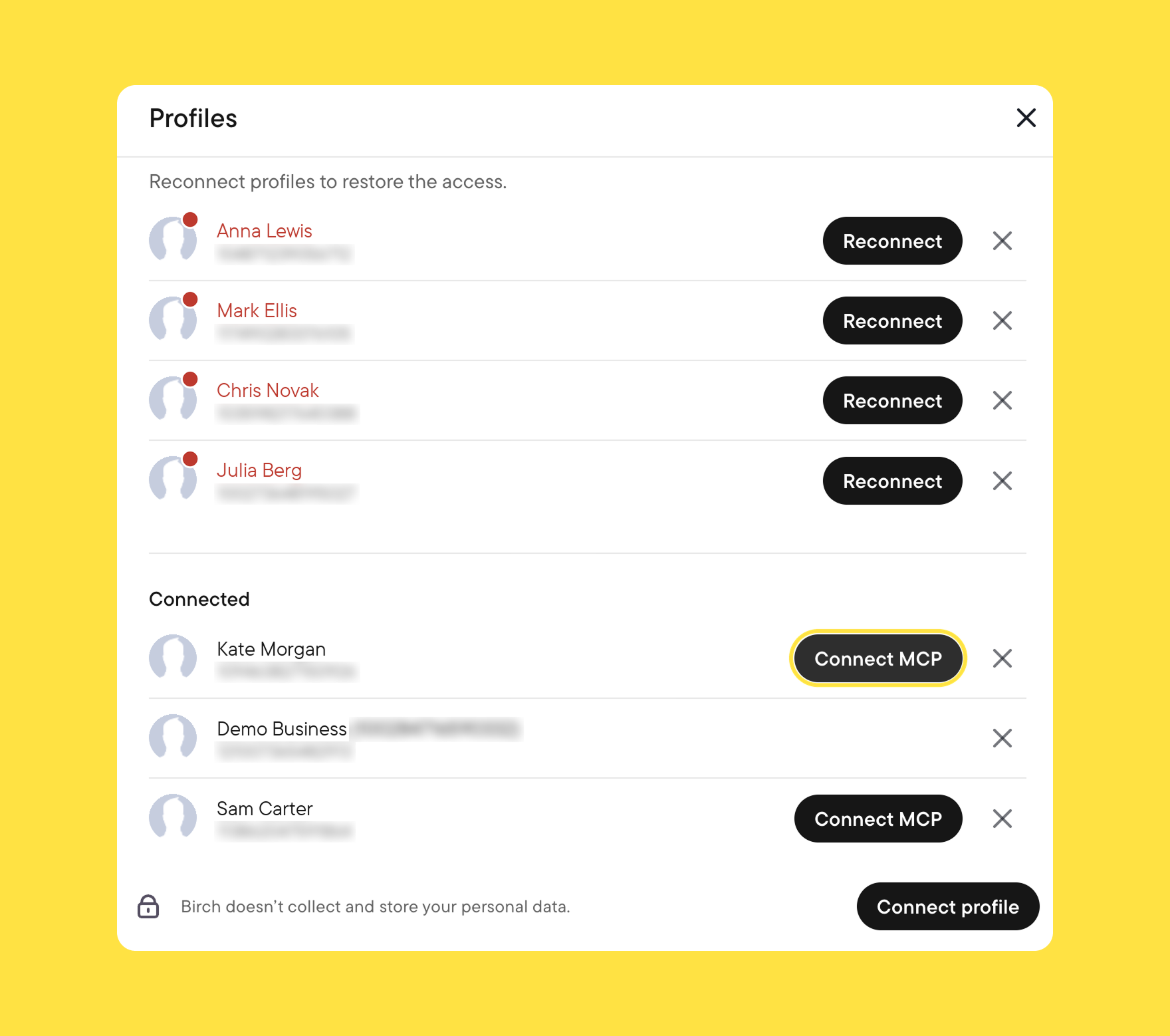
- Sign in with your Ads Manager login. Meta’s sign-in opens, and the account you use for Ads Manager is the one to use here. The profile you sign in with needs access to the right business portfolio and ad account, a precondition Marek Dąbrowski flagged after writing a setup guide of his own. Without that access, what you see after signing in is an empty list of ad accounts.
- Approve the permissions and pick what the agent may reach. The consent screen asks which Pages, Instagram accounts, and business portfolios to expose, and every ad account under a chosen portfolio comes with it. If you manage client accounts, this is where the portfolios this agent doesn’t need stay unticked, and it is worth deciding whether the client has agreed to an agent touching their account at all. Permissions can be revoked from your Meta account settings at any time.
- Ask the agent to list its tools. “Which tools do you have access to on this account?” confirms the connection works and records what this agent can do. If a tool you expected is missing, the first row under Where the first week goes wrong explains why.
Managing the agent
The controls sit at three levels, and they stack: first what you expose at consent, covered in step 3 of How to connect, then the rules Meta lets you set on the account, and finally the per-tool approval in your client.
Rules you can set on the account
An ads MCP server rule denies one agent action on one ad account or catalog. Meta hasn’t documented the defaults, and other marketers have reported all seven actions allowed when they first opened the panel, so it is worth opening before the first prompt. The rules you can set:
- Block creating campaigns, ad sets, or ads.
- Cap budget increases: above a percentage, above an absolute amount, or above a ceiling you set.
- Block changes to targeting, creative, or delivery status.
- Block everything on the account. This is the per-account limit that exists today, and the closest thing to leaving that account out of the connection.
A percentage cap on its own compounds, since several increases in a row, each under the percentage, add up. The percentage trigger is worth pairing with the ceiling.
How to set them
- In Business Settings, open Integrations, then Ads MCP Server.
- Pick the ad account or catalog and open Details.
- Switch an action from Allowed to Blocked. The account shows “Limited” once some actions are blocked. The budget ceiling is its own switch, “Budgets set above this amount,” with the maximum you enter.
Per-tool approval in your client
Meta’s help page puts it in one line: any action taken on your behalf requires your authorization through the AI agent. That authorization lives in the client, not the server. Most MCP clients let you set each tool to ask, allow, or block, and the pause before activation disappears the moment a tool is set to always allow.
Meta’s MCP documentation carries one warning worth taking literally: an agent can call anything its permissions allow, including in response to instructions hidden in content it reads, such as a web page, a document, or a webhook payload. And any tool holding an access token can call Meta’s server with nobody watching, which is why the controls above matter more than the chat interface suggests.
Where the first week goes wrong
🔴 The agent says a tool doesn’t exist.
🟢 Rollout is gradual per account, and connectors expose different subsets. Ask the agent to list its tools; if the one you need is missing, it may not have reached your account, or your connector.
🔴 The campaign was created but isn’t spending.
🟢 Campaigns, ad sets, and ads are created paused. Activation is a separate call, and your client asks before making it. Check the status column in Ads Manager, and ask the agent for delivery errors on the campaign; there is a tool for exactly that.
🔴 The numbers don’t match Ads Manager.
🟢 Usually a different attribution window, time zone, or date range. State the time zone and date range in the prompt, the way you would in a report, and ask the agent which attribution window its numbers use: Meta’s reporting tool documentation lists filters, breakdowns, sorting, and date ranges, but no parameter for setting the window.
🔴 A bulk request touched fewer items than asked.
🟢 This one isn’t in Meta’s documentation. Through the Bïrch AI connection we have seen the connector cap how many entities it checks or updates in one run, so changes applied one at a time are more reliable: name the entities rather than describing them, work in smaller batches, and read the activity log afterwards to see what actually changed.
🔴 “I heard connecting Claude gets accounts banned.”
🟢 The post that went round in March, from Sasha Goncharov, predates Meta’s own server, and Meta has since answered the question directly on its help page: connecting through the ads MCP server is safe, an account is unlikely to be banned simply for using it, and bans come from violating advertising standards, such as noncompliant ad content or evading enforcement with new accounts. The policies that applied before the connection still apply through it.
🔴 There is no Ads MCP Server entry under Integrations.
🟢 Rules haven’t reached your business yet. Meta’s rules page still lists them as limited availability, and the client-side approvals above are the control in the meantime.
What to ask, what to check, what to lock
- Ask “Which tools do you have access to on this account?” before anything else, and save the answer.
- Ask for the 7-day spend breakdown by campaign, then, once the tracking check below has passed, for campaigns spending without converting.
- Check event volume and Event Match Quality on a schedule you’ll actually keep, since tracking doesn’t break loudly; the dataset stats tool reads up to 28 days back, which makes a monthly check the natural unit.
- Check the activity log after any session with write access. It shows the agent’s changes the same way it shows a colleague’s.
- Lock the portfolio list at consent to only the accounts this agent needs.
- Lock budget increases with a rule, percentage plus ceiling, or block the budget tool in your client until rules reach your business.
- Lock the write tools to “ask” in your client for the first few weeks, and widen only what the read-only run has earned.