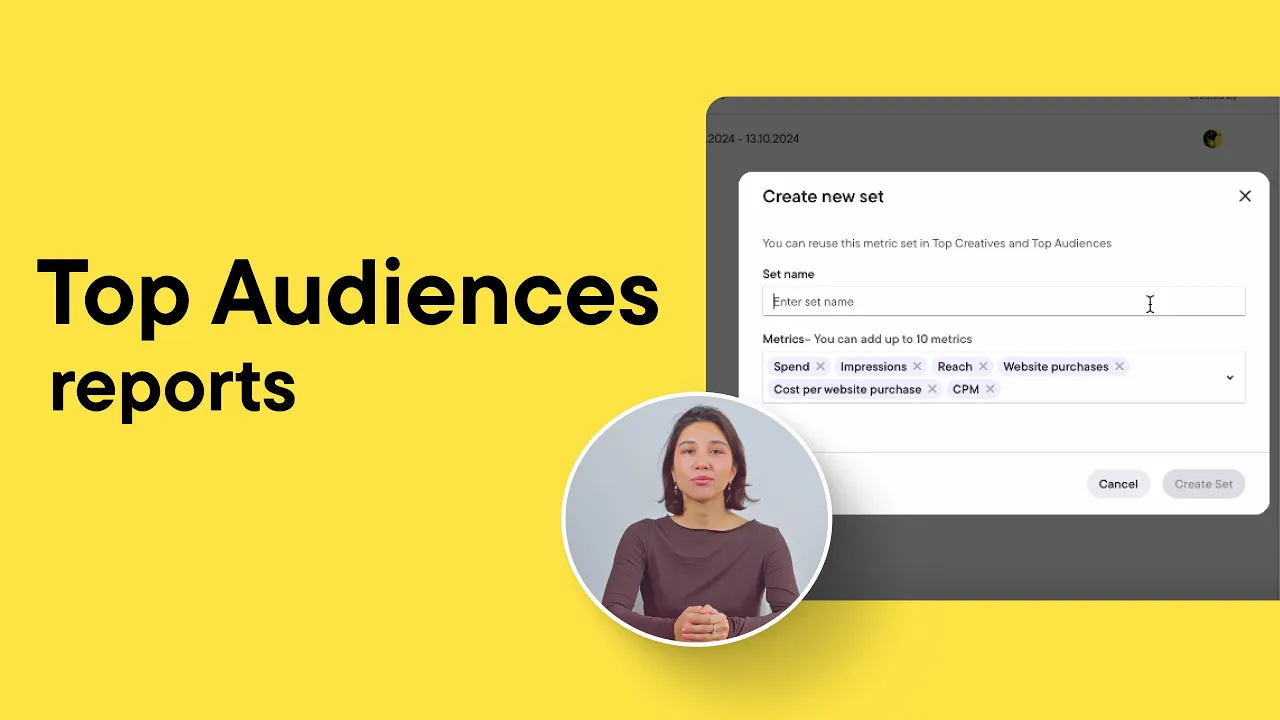
Want to know if your targeting is working? In this video, we’ll walk through the Top Audiences report - a tool that shows how each audience is performing, lets you compare them side by side, dive into detailed results, and create new audiences based on top performers.
Getting Started with Top Audiences
To start, go to the Analyze section on the left-side menu and click “Top audiences”, “Create report” button. Give your report a name and select the ad account you want to pull the data from.
Applying Filters for Targeted Results
Now let’s apply some filters to get more targeted results. I want to focus on audiences from ad sets that include “feed” and “US” in their names, so I can see how they’ve performed in the past. This helps my team get a clearer view of how core audience groups are doing in a specific placement.
Selecting Metrics
I’ll select the following metrics: Spend, Impressions, CPM, Reach, Website Purchases, and Cost per Website Purchase. You can choose up to 10 metrics, and there’s also an option to build custom metrics using the Metric Builder.
Choosing the Timeframe
For the timeframe, I’ll select “Maximum,” but you can also choose from standard ranges, set custom dates, or compare two timeframes to spot trends and changes over time.
Saving Time with Metric Sets
One more useful setting is “Create New Set.” Give your set a clear name — all the selected metrics will be saved there, so you can reuse the set with your most important KPIs in different reports. Just select the set, and your metrics will load instantly.
Advanced Settings Overview
Here are some advanced settings you can adjust — starting with the Attribution Window.
Attribution Window Settings
The Attribution Window controls how conversions are tracked. I’ll leave it on the default, but if your ad sets use different settings, it’s better to uncheck this box — that way, you avoid getting zeros in your results.
Using Ignore Parameters
“Ignore Parameters” is another helpful feature. It lets you choose parameters to exclude from the comparison. For example, if you select Age, audiences with different age settings will be treated as the same, as long as all other settings match. I’ll leave it blank for now.
Generating the Report
Now let’s click the “Create” button and wait for the report to generate. It might take a bit of time, depending on how many audiences match the filters you’ve set.
Analyzing Your Audience Data
Great - now that you have all the audiences and metrics in front of you, let’s look at how to use this data. Clicking on an audience name opens its details, and the next tab shows the ad sets where that audience is used. The ad set IDs are clickable and will take you directly to Ads Manager.
Filtering and Sorting Metrics
For each metric, you can add filters. For example, to see only audiences with conversions set a filter like Website Purchases > 0. You can apply separate filters for each metric based on your business thresholds to get more specific and actionable insights. And by clicking the metric column header sort your audiences by that metric in ascending or descending order.
Comparing Audiences Side by Side
If you’re curious why two audiences perform differently, you can compare them directly. Select the audiences and click “Compare Audiences.” A new window will open showing a side-by-side table of their settings, so you can easily spot what’s different and understand what might be driving the performance gap.
Sharing Insights with Your Team
Now you’ll probably want to share these insights with your colleagues. Click the “Share” button to either copy a public link or select “Share with the team,” which gives your teammates access to the report through their Birch accounts.
If you prefer to review the data first, you can download it as a CSV file or share a direct link to the CSV. You can also white-label the report by adding your logo in the Settings menu.
With the Top Audiences feature, a single report can show you if your efforts and budget are going to the right channels, help you discover new targeting opportunities, and deliver better results for your clients. Give it a try, and don’t forget to share your feedback in the comments!