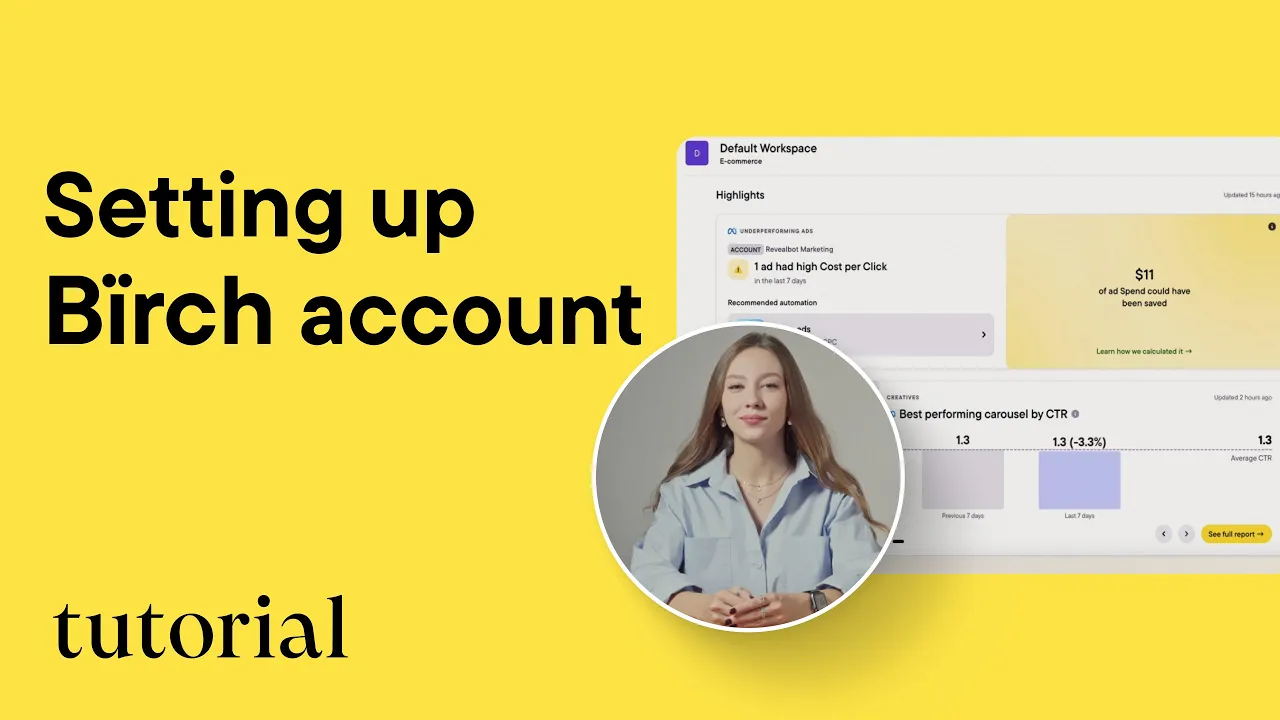
Hi, in this video, I’m going to show you how to set up your ad accounts in just a few steps so you can start tracking ad performance, receive automatic insights, and recommendations. Let’s get started!
Navigating to Integrations
To connect your ad and social accounts, open Birch, go to your profile menu in the bottom left corner, and click on Integrations. This is where you can connect all the platforms and ad accounts you want to access with Birch.
Supported Integration Platforms
Birch integrates with platforms like Meta, Google, Snapchat, and TikTok for automation and reporting. You can also connect Slack, Google Analytics, and YouTube for notifications and insights.
We also support Wicked Reports, Hyros, AppsFlyer, and Google Sheets to help solve your attribution challenges.
Step-by-Step: Connecting Meta Ads
Authorizing Meta Access
Click on the Meta Ads tab. You’ll be redirected to Meta to authorize access. You can choose whether to grant access to Birch to all current and future assets, or to the specific ones only. If you regularly create or get access to new ad accounts, pages and IG accounts, and need to use them in Birch, we recommend choosing the first option - grant access to Revealbot to all current and future assets.
Selecting Accounts to Connect
Back in Birch, your Meta profile will now load, displaying all the ad accounts, Facebook pages, and Instagram accounts you have admin rights to. Just toggle on the accounts you want to connect.
Important: Only toggle on the accounts you plan to use with Revealbot to manage your ad spend efficiently.
Connecting Other Platforms (Google, Snapchat, TikTok)
Connecting platforms like Google, Snapchat, or TikTok works much the same way. Just authorize access and toggle on the accounts you want to manage with Birch.
And that’s it! Now your ad accounts are connected, and you’re ready to receive automatic insights and recommendations in our workspaces. You can add up to 10 connected ad accounts in each platform to the workspace and monitor their performance in one easy-to-use dashboard.
Thanks for watching, and see you in the next video!