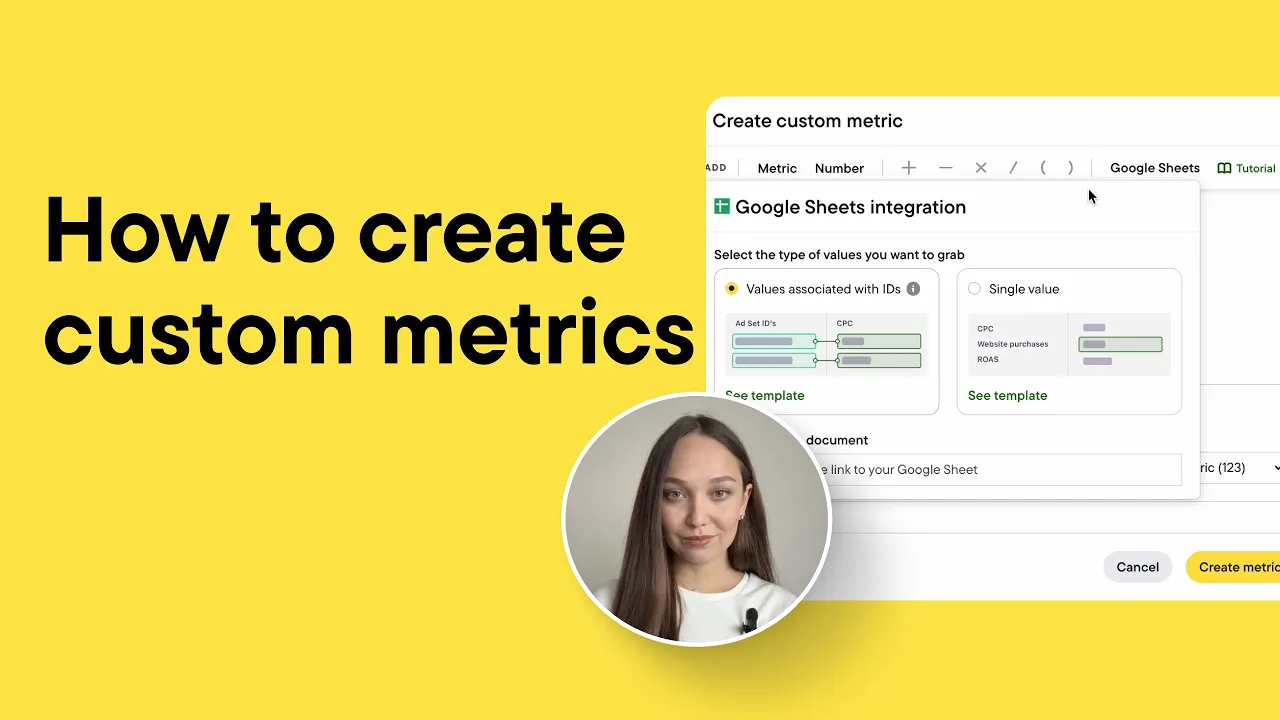
In this video, we’ll explore custom metrics in Birch — what they are, how to create them, and why they’re such a handy feature for your automations.
Meta Ads gives you access to hundreds of metrics. But sometimes, the one you really need just isn’t there. That’s where Birch custom metrics come in. They let you build your own formulas and use them in automated rules and reports, and use your custom CRM or tracking data to trigger automations. For example, you can create a custom metric to track your unique conversion rate, calculate an efficiency ratio, or even build a moving ROAS or CPA target.
In this video, I’ll take you through how to create a custom metric step-by-step, and then share a few ideas for how to put them to work in your automation.
Getting started with Custom metrics
You’ll find the Custom Metrics Builder in the Automate section — it’s a separate tab right at the top. Custom metrics work across all the ad platforms Birch supports — Meta, Google, Snapchat, and TikTok. But for this example, we’ll focus on Meta Ads.
Creating Your First Custom Metric
Click "New custom metric." Here’s where you can write a formula to define your own metric. It works by combining default ad metrics with your own numbers and mathematical operators. For example, I’ll create a conversion rate metric using this formula:
**(Website purchases ÷ unique link clicks) x 100**
You can pull in metrics from attribution platforms like Appsflyer, Wicked Reports, or Hyros, and also use your custom conversions and custom events.
But for now, let’s stick with conversion rate. Next, let’s name it Conversion rate, set the format to Percentage, and add a short description — something like website purchase conversion rate from link clicks. The formatting only affects how your numbers are displayed. So if you choose Percentage, it’ll simply add the percentage symbol — that’s it. Once you’re done, click "Create Metric," and it’ll be saved in your Custom Metrics Library.
Using Google Sheets for Custom Metrics
You can also create custom metrics based on Google Sheets — for instance, if your team tracks conversions data, subscription renewals, or customer lifetime value in spreadsheets. By syncing that data with your ad performance in Birch, you can build metrics like true ROI or revenue per lead to go beyond platform-reported results and understand how your campaigns actually impact your bottom line. It’s a really flexible option if you use 3rd party, your own custom tracking solutions or CRMs. And if you want to learn more on how to implement it in Birch, we’ve got a separate video that covers the setup process step by step.
Creating a Single Number Custom Metric
Let’s look at another example — this time, creating a single number as a custom metric. Say your client or manager sets a ROAS target every month. Instead of updating every rule manually, you can turn that target into a custom metric. For example, if this month’s ROAS target is 2.5, choose Number instead of Metric, enter 2.5, and assign it to the specific ad account. Then, give it a name like ROAS Target, set the format to Numeric, add a short description, and click "Create Metric." Now, whenever the target changes, you’ll only need to update the custom metric — and your rules will adjust automatically.
Using Custom Metrics in Automated Rules
Now let’s see how to use our new ROAS Target in an automated rule. In our budget increase rule, instead of saying Website purchase ROAS ≥ 3, we’ll compare ROAS against the ROAS Target custom metric. To do that, use the Metric Comparison feature. Click the gear icon, select "Metric," and then choose your new ROAS Target as the second metric. Now the condition reads:
If Website purchase ROAS ≥ ROAS Target → Increase budget.
The best part is — if the ROAS Target changes later, the rule will update automatically. By the way, you can even create custom metrics right inside the Rule Builder — pretty convenient!
That’s it! Custom metrics — especially when paired with metric comparison — are one of the biggest advantages of using Birch over Meta’s native automated tools.
Try it out to make your automations even more powerful.