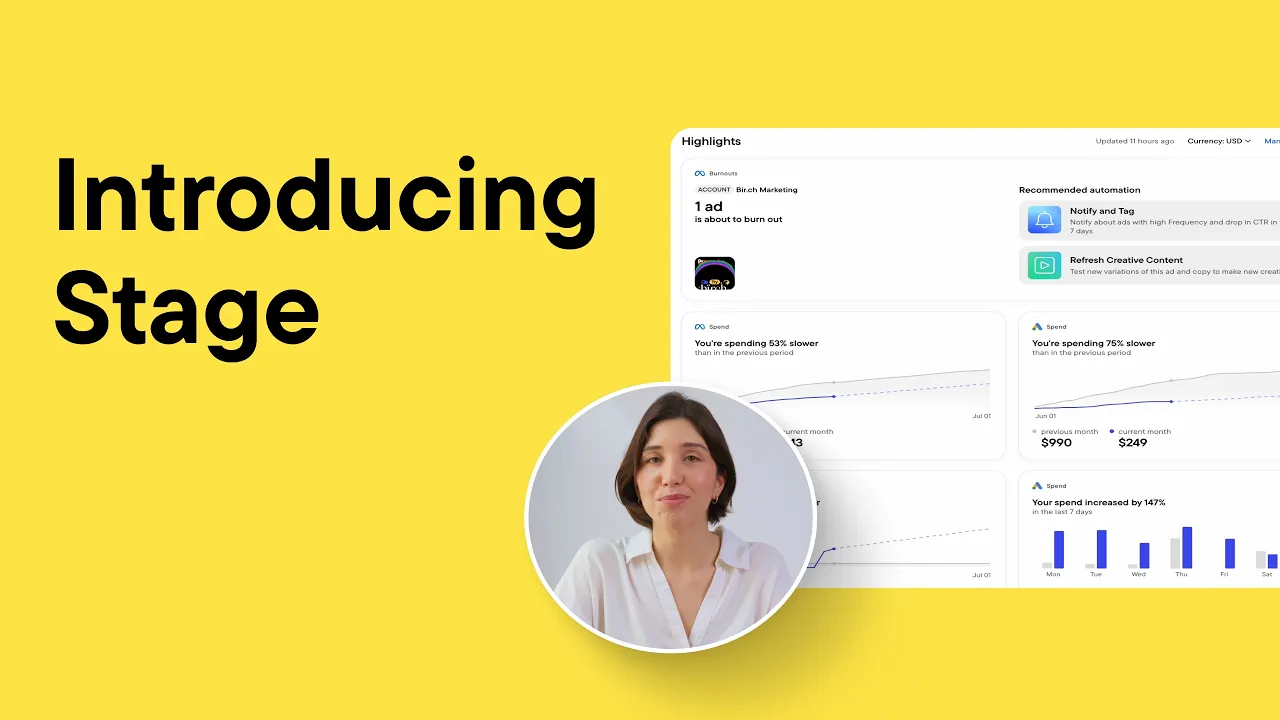
Does uploading creatives and launching ads take up half your workday? All that manual work pulls you away from what actually matters - strategy and creativity. You’re not alone, and that’s exactly why we built Stage.
Stage automatically uploads creatives from Google Drive directly to your Meta, TikTok, and Snapchat Media Libraries, no repetitive drag-and-drop. And while uploading, you can turn that media into live ads in the same step - whether you’re testing fresh creatives or scaling your best performers. If your workflow runs through a Google Sheet - with copy, Drive links, and creative specs all in one place - Stage can read it directly and build your ads from it automatically, no copy-pasting into Ads Manager. One upload, campaigns ready to launch. Here’s how it works.
How to start
Navigate to Stage and click "Get started." You’ll see a service email under "Share folders with Stage" - add it as a Viewer to your Google Drive folder, then paste the folder link on the right. You can also use the "Anyone with the link" option. For automatic subfolder syncing, use top-level folders. Click "Continue to Stage."
Note: you will need to keep the folders connected for as long as you want to upload from them.
Now let’s upload. Paste your file or folder links, you can do that in bulk. Select your destination - Meta, TikTok, or Snapchat. I’ll upload to Meta.
If you want to upload media via Stage and then create ads from scratch in our Launcher feature, you can check "Create a Launcher media folder" and your creatives will appear directly in Launcher, ready to use.
Click "Review and Upload” to finalise the process. You don’t need to wait - everything runs in the background.
Duplicate Ads with New Media
For the quick ad creation use Duplicate Ads with New Media. This is built for anyone who wants to launch ads with fresh creatives quickly, without rebuilding them from scratch. Stage duplicates your selected ad set and ad while keeping all original settings intact.
Here are some situations when this comes in handy:
First - creative fatigue or when your ad’s CTR starts dropping and your audience has seen it too many times. Upload your new creative, duplicate the ad with it, and you’re back to results in minutes. Same audience, same budget, same copy but with a freshly uploaded creative - nothing to set up from scratch.
Second - touch - ups of your winning creative concepts. For example a holiday like Valentine’s Day is coming and you need a themed version of your best-performing ad, but you don’t want to touch the original while it’s still running. Upload the new creative, duplicate the ad, run both side by side. When the holiday ends, just turn the seasonal one off. All this done in minutes.
In case you have separate creatives for different placements, enable "Group media by placement." Stage will automatically group files that share the same name but differ by aspect ratio or suffix — like _1x1, or _vertical.
And if you organize your creative folders by campaign or audience, the "Associate folders with ad sets" feature will automatically recognize your folder structure and create a separate ad set for each folder — no manual mapping needed.
There are three duplication options:
- "Duplicate ad set" creates one new ad set for the entire media batch - use this when you want multiple creatives in a single ad set.
- "Duplicate ad set for each media" creates a separate ad set per file - ideal for testing each creative individually with full control.
- "Add to ad set" adds new ads inside an existing ad set without duplicating it - best for adding variations to a live campaign.
- I’ll go with the “Add to ad set” option. Click "Preview" to review, then "Review and Create Ads." From there you can turn on your ad sets and ads and set a start date. To review your activity, click the Uploads button - it shows the full history of both uploads and ad creation.
Import from Google Sheet
If your creative workflow lives in a Google Sheet - copy in one column, Drive links to assets in another you are probably spending a lot of time downloading files and copy-pasting elements into Ads Manager one ad at a time. Stage solves this! Simply connect your Google Sheet to Birch once, map the columns to their parameters, and Stage will automatically create ads using everything in the sheet every time you need to create new ads.
Here’s how it works. Add your Google Sheet file and click Continue. You’ll then see a mapping window where you match each column to its content - for example, column A contains your Google Drive creative links, column B your primary text, and so on. You only need to map your sheet once. Stage uses this mapping when building your ads. Each time you need to create ads from this sheet, you will simply need to select your row range, apply any filters you need, and continue to upload the creatives from your selected rows. On the next step, you can use the same Duplicate Ad Set with New Media feature we covered earlier and pick the mode that fits your campaign setup, Preview your ads, and then Review and Create.
To sum up
Stage turns what used to be hours of repetitive work into a few clicks, so your team can focus on what actually drives results. With more scenarios covered and everything running automatically, you’re always ready to move fast - whether it’s an unexpected opportunity, a new creative to test, or a campaign that needs a quick refresh. Give it a try today!