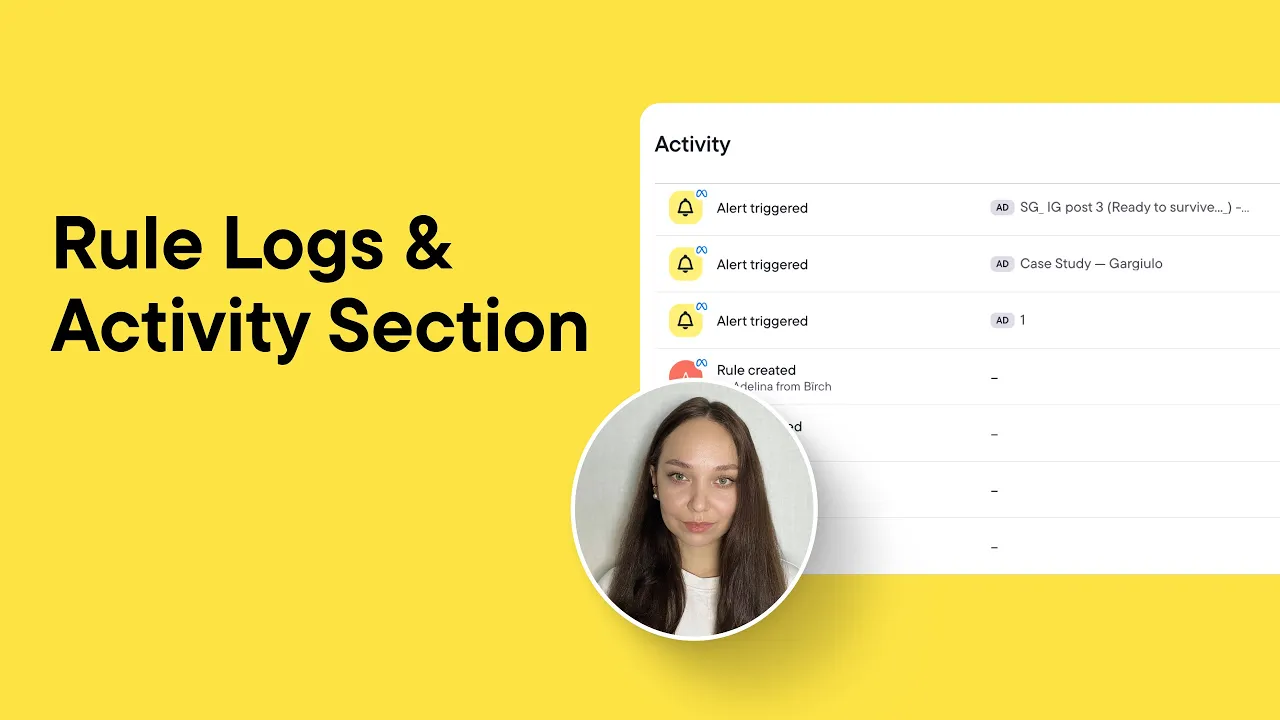
In this video, I’ll walk you through two really helpful features of Birch that give you a clear picture of what your automations are doing behind the scenes — the Rule Logs and the Activity section.
If you’ve ever wondered why a rule didn’t fire, or you just want to double-check that everything is running as expected, these two areas will give you the answers — and help you stay in control.
Getting started with the rule logs
To find them, go to the Automate section in the left sidebar, pick your ad platform, hover your mouse over the rule you’re interested in, and click Logs. Here you’ll see a table showing all recent checks — by default, it displays data from the past 7 days.
Each log entry includes:
- Time of the rule check – shown in your time zone, not the one set in the rule, so keep that in mind.
- Applied items – the number of items the rule looked at during that check.
- Affected items – how many items the rule actually did something to (like pausing, increasing budget, and so on).
- Errors – any items that returned an error during the check.
You can switch between two views: All checkings to see every rule check, or Triggered and errors to focus only on the checks where something happened — either a rule was triggered or an error took place.
There are several filters available — you can filter the logs by item name or ID, by task type, and more.
You can also sort the logs in different ways:
- Sort by Errors and affected to bring the most important checks to the top — successful actions will show in green, and errors in red.
- Sort by Parent item to group together all the items that belong to the same campaign or ad set, making it easier to see patterns.
Clicking any log reveals more details. You’ll see which items were checked, what metrics were evaluated, and whether each condition was met.
Conditions in green were met, those in black were not — simple as that.
There’s also a super useful Search log feature. If you want to see all rules that have checked a specific item, just copy its ID, go back to the rule logs homepage, and paste it into the Search log in the top right corner. This gives you a full overview of how different rules are interacting with that item.
In short, rule logs help you understand what your rules are doing, and why — which is key to making sure your automations are running exactly how you want them to.
Activity section
Now, let’s move on to the Activity section. This view gives you a real-time feed of all actions taken by your rules and templates — across your entire account. It’s great for seeing the bigger picture, beyond just one rule.
You can filter the activity feed in many ways:
- By ad account — Google, Facebook, Snapchat, or TikTok
- By event type — like "Post boosted" or "Automation started"
- By action type — such as "Paused," "Enabled," or "Updated"
- By rule name — to focus on a specific automation
- And by entity name or ID — if you want to look at a certain campaign, ad set or ad
These filters can be combined, giving you full flexibility to drill down to exactly what you need.
Let’s check that item’s activity by filtering the Activity section by its Entity ID.
Here you’ll see what actions were taken, along with the item’s name — which links to it in Ads Manager — and the rule that triggered it, that you can open by clicking its name. You’ll also see when the action happened.
The Activity section also helps you catch errors or integration issues early — like when a Meta Profile disconnects or access to a Google Sheet is lost.
It brings these issues to your attention quickly, so you can take action and keep everything running smoothly.
So, to sum it up — rule logs help you understand what happened with a specific rule and why, while the Activity section gives you a real-time overview of everything going on across your account. Together, they make troubleshooting easier and give you more confidence in your automations.
If you ever feel unsure about why something did or didn’t happen, start here. And as always, if you need any help, you can reach out to our team or check out more resources in our Help Center.